

When you connect an external hard drive, you usually see a visual cue or hear a sound indicating that Windows has detected the device. This time, however, nothing happens. Opening File Explorer, you realize that the external drive is missing.
Several factors can cause this, ranging from hardware failures to system errors. At this stage, it's difficult to determine the severity of the problem. Don't worry — there are multiple proven solutions to fix the issue when your computer doesn't recognize an external hard drive.

Why Isn't My External Hard Drive Showing Up?
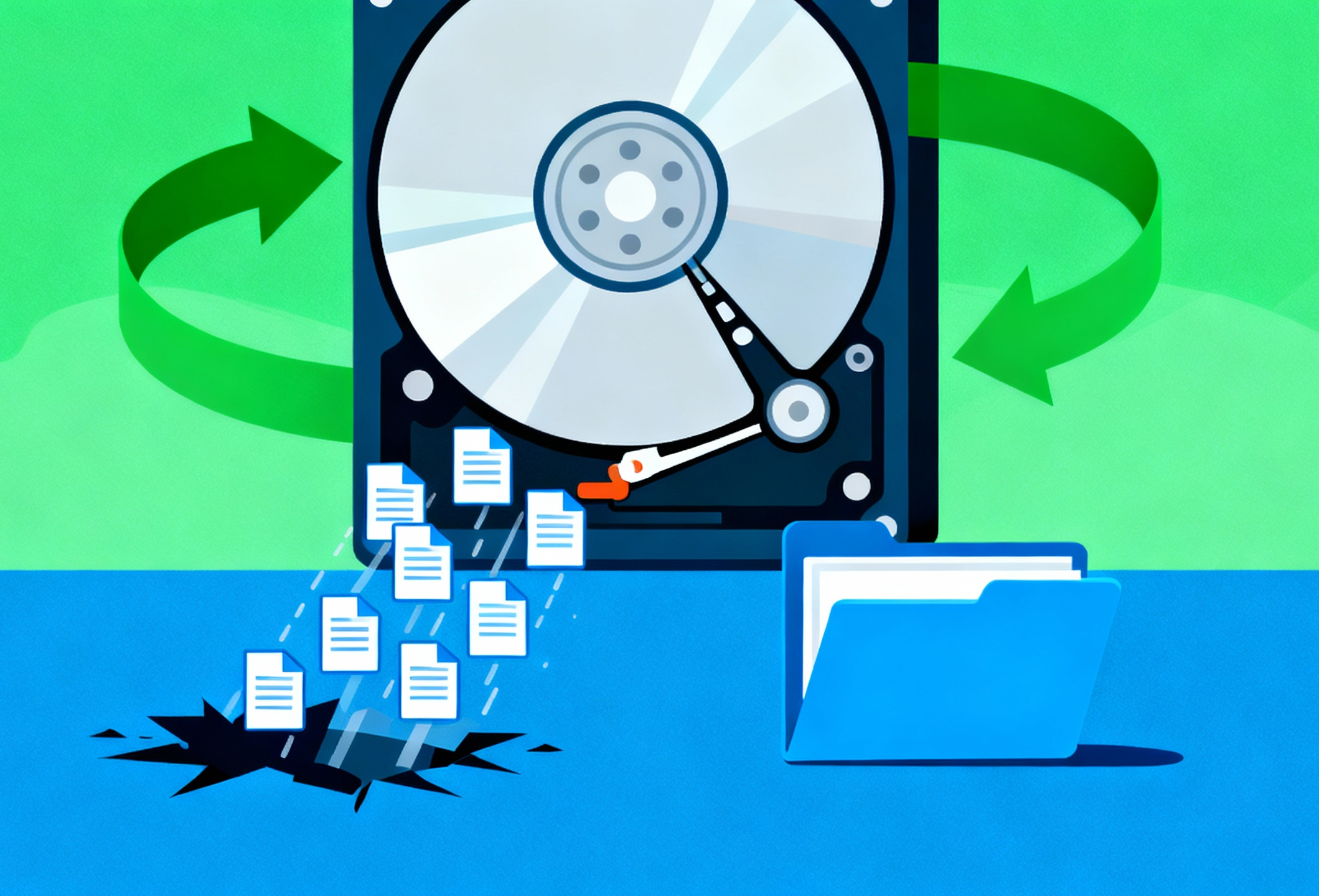
If an external hard drive doesn't appear in Windows, the underlying problem usually falls into one of two categories: physical or logical.
 Physical problems are hardware-related and can include bent pins, damaged casing, head crashes, or mechanical stiction.
 Logical issues are software-related and often involve corrupted file systems, missing drive letters, incompatible formats, or lost partitions.

How to Identify the Problem Type
You can often make an educated guess about whether the issue is physical or logical based on how Windows responds and what you see in system tools.
If the drive doesn't appear in Device Manager or Disk Management, or reports an impossible size, it's likely a physical problem.
If the drive is visible in both Device Manager and Disk Management but cannot be accessed, it's probably a logical/software problem.

Check the Physical Connection
Before moving to software troubleshooting, ensure that the drive itself is properly connected and powered.
Try a different USB port (preferably a USB 3.0 port).
Test the drive on another PC.
Use a different cable—faulty USB cables are common.
If the drive has external power, make sure it is plugged in.
Check Device Manager
If Windows detects the external drive at a hardware level, it should appear inside Device Manager.
Right-click Start → select Device Manager.
Expand Disk drives or USB controllers.
Look for devices marked with a warning icon (!).
Right-click and select Update driver or Uninstall device then restart.
Check Disk Management
Windows may detect a drive but fail to assign a letter or recognize the file system.
Right-click Start → Select Disk Management.
Find the external drive (may be labeled "Unallocated").
If "Not Initialized", right-click → Initialize Disk.
If partition is corrupted, you may need to recover data first.
Update or Reinstall USB Drivers
Outdated or corrupted drivers frequently cause unrecognized USB devices.
Open Device Manager.
Expand Universal Serial Bus controllers.
Right-click → Uninstall device.
Restart your PC to reinstall drivers automatically.
Assign a Drive Letter
If your external drive appears but has no letter, Windows cannot access it.
Open Disk Management.
Right-click the external drive partition.
Choose Change Drive Letter and Paths.
Add or change the letter.
Format or Repair the Drive (If Needed)
If the drive is recognized but unreadable, filesystem damage may be the cause.
Right-click drive → Format (Warning: wipes data).
Run CHKDSK repair: chkdsk /f X:
Use diskpart to clean and reset the drive (advanced).
Data Recovery Options
If Windows detects the physical drive but not the partition, you may still recover files.
Use professional recovery software.
Recover data before formatting.
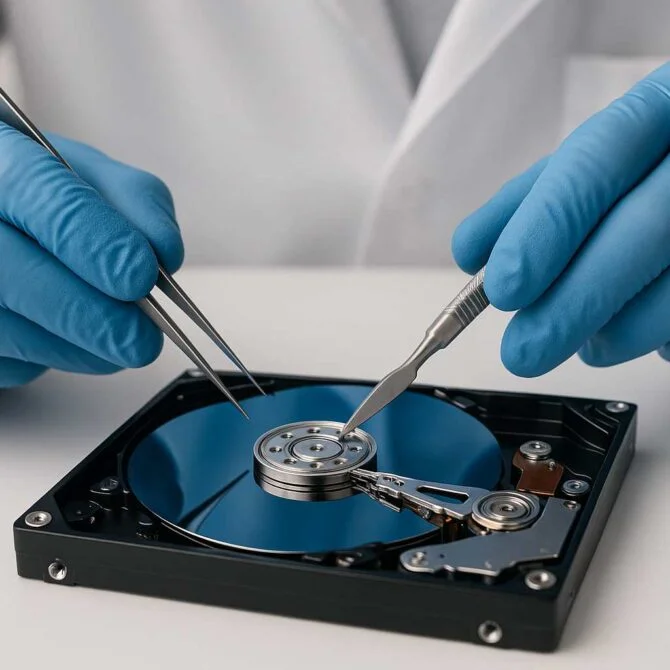
For clicking or failing drives, seek hardware recovery specialists. (such as PITS)
FAQs
Q: I plug in my external drive — nothing appears in File Explorer. What should I do first? +
Q: The drive shows in Device Manager but not in File Explorer. Why? +
Q: I formatted the drive but it's still not visible. What could be wrong? +
Post time:2 月-12-2026