

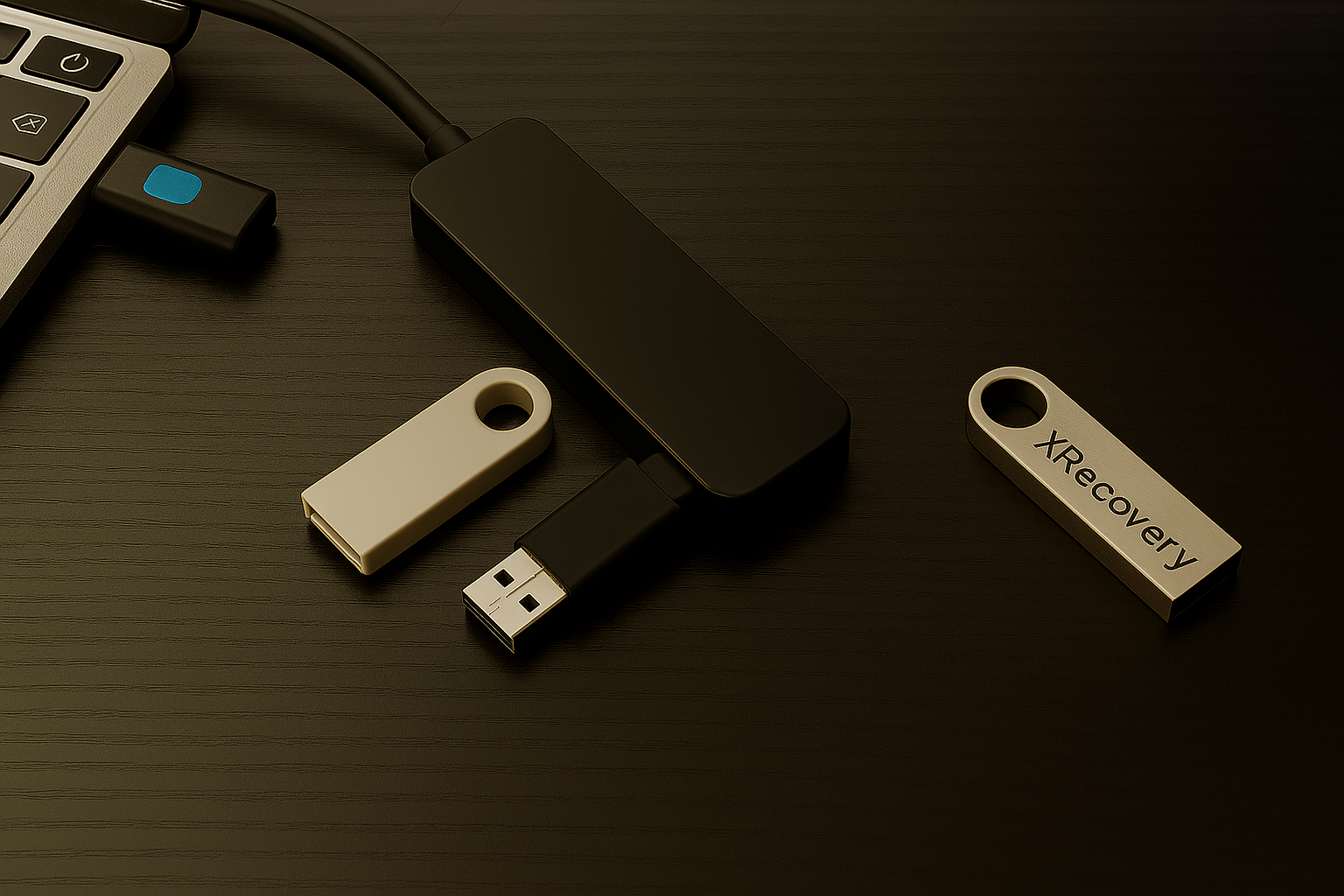
Formatted USB flash drives are commonly used for transferring temporary data, which makes them highly susceptible to accidental formatting and file loss. The good news? Recovering files from a formatted USB flash drive is not only possible—it's often easier than you think. In this guide, you'll learn what formatting actually does to your drive and how to restore lost data using the right recovery tools.
Important
To maximize your chances of successful recovery, stop using the formatted USB drive immediately. Any new data written to the drive—whether through saving or transferring files—can overwrite the lost information, making recovery far more difficult or even impossible.
What Happens When You Format a USB Drive
Formatting a USB drive resets its file system, clearing the way for new data to be stored. However, the extent of data loss depends on the type of format applied—some methods simply remove file references, while others overwrite the data entirely.
Quick Format
Is comparable to removing the index from a book—it erases the file system's allocation tables, which are essentially maps that tell your operating system where each file is located on the drive. Although the system now sees the USB drive as "empty," the actual data—the contents of the book's pages—remains physically intact.
Full Format
By contrast, is much more thorough. It not only removes the index but also scans every sector of the drive, overwriting existing data and checking for bad sectors. This process is akin to tearing out all the pages of a book and replacing them with blank sheets, leaving no trace of the original content.
Pro Tip
One common issue many users encounter is the "USB Drive Not Formatted" error. This typically appears when the operating system fails to recognize the drive's file system—often due to corruption, incompatibility, or missing structure. While the prompt may urge you to format the drive, doing so will erase all existing data and significantly reduce the chances of successful recovery. Proceed with caution, and always consider data recovery options before formatting.
How to Recover Files from a Formatted USB Drive
In this section, we'll walk you through the essential steps to recover files from a formatted USB flash drive—leveraging trusted recovery tools and proven techniques to help you restore lost data with confidence. Let's dive in.
Solution 1: Data Recovery Software
Data recovery software can retrieve lost files from a formatted USB drive by performing low-level scans to find residual data fragments. These tools bypass the standard file system and analyze the drive sector by sector.
We'll use the XRecovery USB recovery tool because it offers several key advantages:
Broad USB flash drive compatibility: Supports all major file systems including FAT16, FAT32, exFAT, NTFS, NTFS5, EXT2/EXT3/EXT4, and BTRFS.
Organized scan results: Recovered files are neatly categorized into Deleted, Existing, and Reconstructed groups.
Extensive RAW format support: Excels at detecting and recovering a wide range of RAW photo and video formats, with support for over 400 file types.
Free data recovery: The Windows version allows users to recover up to 1000 MB of data at no cost.
How to Use XRecovery to Recover Files from a Formatted USB Drive
Connect Your USB Drive
Plug the formatted USB flash drive into your Windows computer. Avoid writing any new data to it to preserve recoverable files.
Launch XRecovery
Open the XRecovery application. The software will automatically detect connected USB devices and display them in the interface.
Scan the Drive
Select your USB drive and choose the "Deep Scan" option. XRecovery will begin scanning for deleted, existing, and reconstructed files.
Preview & Recover
Browse through the categorized results. Select the files you want to recover and click "Restore." Save them to a different drive to avoid overwriting.
💡 Pro Tip: For best results, avoid using the USB drive until recovery is complete. New data written may permanently overwrite lost files.
Solution 2: Command Prompt (CMD)
The Command Prompt (CMD) in Windows provides several useful data recovery commands. To open CMD, simply press the Windows key, type "cmd", and run the Command Prompt as an administrator.
Reveal Hidden Files Using the ATTRIB Command
Is your USB flash drive appearing empty or "formatted," even though you never formatted it? In many cases, the drive isn't actually formatted—its files may have simply been hidden due to modified attributes. A single Command Prompt instruction can reveal these hidden files:
attrib -h -r -s /s /d I:\*.*🔧 Replace I with the actual drive letter assigned to your USB flash drive.
Repair USB Flash Drive Using CHKDSK
Sometimes a corrupted USB flash drive may appear to be formatted simply because its files are inaccessible. You can repair most USB drives using the built-in CHKDSK tool:
chkdsk I: /r🔧 Be sure to replace I with the actual drive letter. This command scans the drive for errors and attempts to recover readable data from bad sectors.
Best Practices & Future Protection
Stop using the affected drive immediately to avoid overwriting recoverable data.
Perform daily backups to an external storage device or enable automatic cloud backups.
Choose reliable recovery software and keep it up to date.
Always double-check the target drive before performing any critical operations.
Conclusion
Recovering data from a formatted USB drive is often easier than expected. With the right recovery tools, even the daunting question—"How do I retrieve files from a formatted flash drive?"—becomes manageable. So the next time your pen drive is accidentally formatted, damaged, or corrupted, remember: the data inside isn't necessarily lost. With the proper approach, it can be brought back.
FAQ
What Is the "USB Drive Not Formatted" Error? +
How to Solve The "USB Drive Not Formatted" Error? +
Try a Different Operating System: Connect the USB drive to another computer running Windows, macOS, or Linux.
Use XRecovery for Data Retrieval:
- Install XRecovery on your computer
- Plug in the affected USB drive and launch XRecovery
- Select the drive and start a deep scan
- Preview recoverable items and choose where to save them
How can I recover files from a formatted USB drive without using software? +
Is it possible to recover data from a USB drive that was fully formatted? +
Post time:2 月-12-2026