

In an era where digital storage is paramount, losing data from a failing SSD can be a nightmare. As digital reliance grows, safeguarding data becomes more critical than ever. Fortunately, there are steps you can take to safely recover your valuable files. This guide will walk you through the process of transferring files off a failing SSD, understanding the basics of SSD data recovery, and ensuring your data is protected for the future. By following these steps, you can mitigate the risks associated with SSD failures and maintain peace of mind regarding your digital assets.
Understanding SSD Failures
Solid State Drives (SSDs) have gained popularity due to their speed and reliability compared to traditional hard drives. They have revolutionized data storage with their fast read/write speeds and durability, making them the preferred choice for many users. However, like all technology, they aren't immune to failures. SSD failures can occur due to various reasons, including firmware corruption, bad blocks, or simply aging components. Though SSDs lack moving parts, they still face issues that threaten data integrity. Recognizing SSD failure signs enables swift action before data loss becomes permanent.
Signs of a Failing SSD
Before diving into recovery, it's essential to know the symptoms of a failing SSD. Here are some common indicators:
Frequent System Crashes: If your computer is crashing more often, especially when accessing certain files or applications, it might be a sign of a failing SSD. These crashes can manifest as the dreaded "blue screen of death" or unexpected system restarts.

Slow Performance: Sudden sluggishness in data access or transfer speeds can indicate problems. This decline in performance may be subtle at first but can quickly escalate, affecting your ability to efficiently use your computer.

Read/Write Errors: Frequent error messages when trying to read or write files are a clear warning sign. These errors suggest that the drive is struggling to process data, potentially due to bad sectors or failing memory cells.

Missing Files: Files disappearing without explanation can be alarming and may point to underlying storage issues. It's crucial to verify that these files haven't been accidentally deleted or moved before suspecting drive failure.

Drive Not Recognized: If your system occasionally fails to recognize the drive, it's a red flag. This can happen during boot-up or when attempting to access the drive, indicating potential connectivity or hardware issues.
Preparing for Data Recovery
Once you suspect your SSD is failing, it's crucial to act quickly. Data recovery is time-sensitive, and early intervention can prevent permanent data loss.

Back Up Immediately
If your SSD is still accessible, create a backup of your most critical files as soon as possible. Prioritize documents, photos, and other irreplaceable data over easily replaceable software or applications. Use an external hard drive or cloud storage to ensure your data is safe.

Avoid Writing Data
Limit any write operations on the SSD. Writing new data can exacerbate the problem and may overwrite sectors that contain recoverable data. This means refraining from downloading new files, installing software, or making changes to existing files.
Data Recovery Methods
Now that you've backed up essential files and minimized write operations, let's explore how to transfer files off a failing SSD. Selecting the right recovery method depends on the severity of the SSD's issues and your comfort level with technology.

Using Built-In Tools
Most operating systems come with built-in tools that can help with basic data recovery:
Windows: Use the built-in Check Disk utility (chkdsk) to scan for errors. This tool can identify and repair file system errors.
Mac: Utilize Disk Utility to run First Aid on your SSD. This tool can verify and repair disk permissions and file system errors.
Data Recovery Software: XRecovery
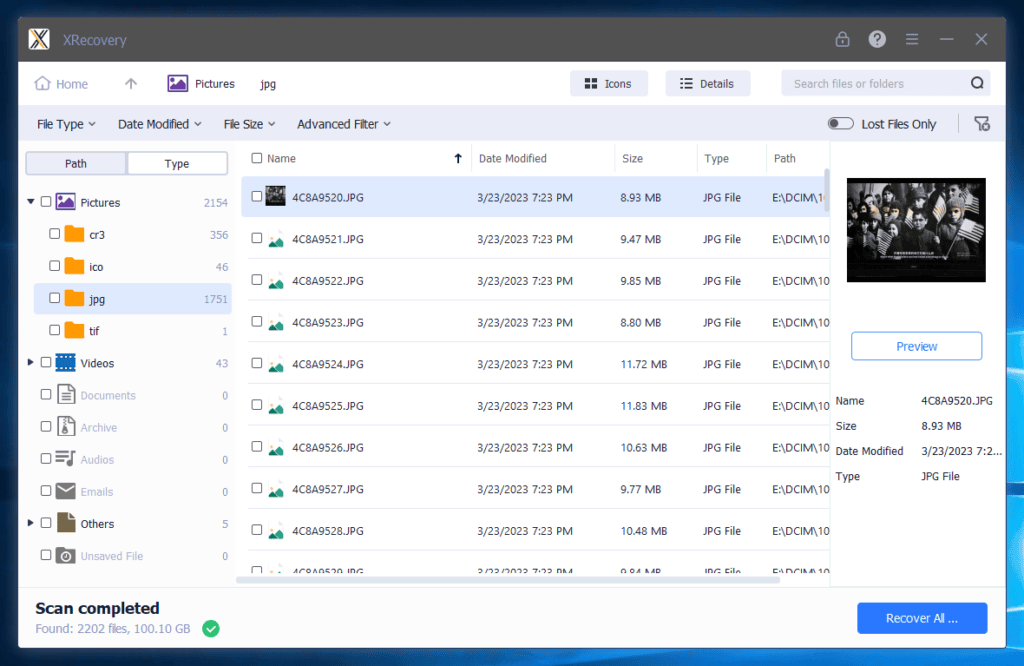
XRecovery is a powerful data recovery tool compatible with various hard drive brands and types, including both mechanical and solid-state drives. It can recover files lost due to accidental deletion, formatting, partition loss, or minor hardware issues.
The software uses advanced scanning algorithms to thoroughly analyze the hard drive's storage structure, ensuring precise recovery. It supports a wide range of file formats, from office documents (DOCX, XLSX, PPTX) and images (JPEG, PNG, TIFF) to audio (MP3, WAV, AAC) and video files (MP4, AVI, MKV), as well as specialized formats like CAD's DWG and Photoshop's PSD.
 File Preview: After scanning, users can preview files directly within the software, such as viewing document text, images, or playing audio and video files.
Additionally, XRecovery offers professional repair services for severe physical damage, such as head crashes or motor failures.
Engaging Professional Services
If software fails or data is irreplaceable, professional recovery services may be your best option. These experts have specialized tools and cleanroom environments to recover data from severely failing SSDs.
 Note: While this option can be costly, it may be worth it for irreplaceable data. Professionals can often recover data from drives that have suffered physical damage or severe logical corruption.
Preventing Future Data Loss
Once you've recovered your data, take steps to prevent future incidents. Proactive measures can significantly reduce the risk of data loss and ensure your digital life remains uninterrupted.
Regular Backups
The best defense against data loss is maintaining regular backups. Use a reliable external drive or cloud-based services for automated backups. Schedule backups to occur at regular intervals, such as daily or weekly. Having multiple backup copies in different locations further enhances data security.

Monitor SSD Health
Keep an eye on your SSD's health using monitoring tools like CrystalDiskInfo. These tools provide insights into the drive's performance and can alert you to potential issues before they become critical.

Avoid Extreme Conditions
SSDs can be sensitive to extreme temperatures and physical shock. Ensure your computer is in a stable environment, free from excessive heat or vibration, to prolong the life of your SSD. Additionally, avoid sudden power losses or surges by using a reliable power supply and surge protector.

Conclusion
Recovering data from a failing SSD doesn't have to be a daunting task. With the right approach and tools, you can successfully transfer files off a failing SSD and secure your important data. Remember, the key is to act swiftly and make regular backups part of your routine.
Always stay informed about the latest tools and techniques in data recovery to ensure you're ready for any situation. With diligence and the right resources, you can navigate SSD failures with confidence and maintain the integrity of your digital assets.
Post time:2 月-12-2026